Features
Every part of the app, and what it is actually for.
Everything the app does, and what each part is for.
GDTF makers
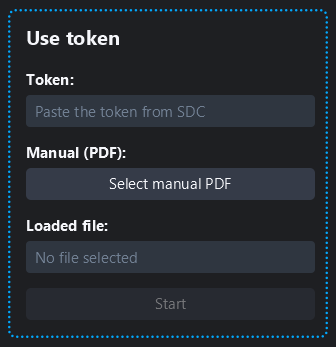
No fixture file for your light? Load the manufacturer's PDF manual and the built-in AI writes the GDTF file for you - or enter the channels yourself with the Simple GDTF Maker.
Timeline editor
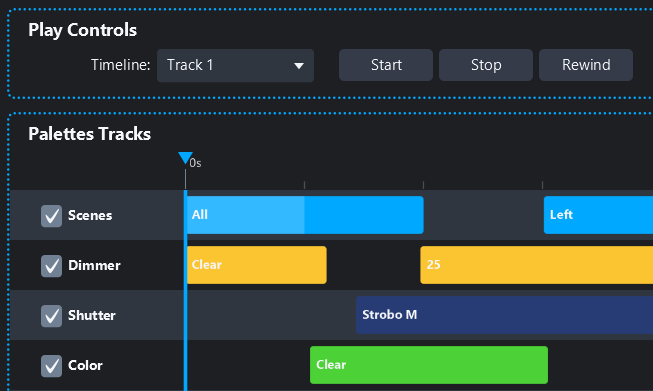
Drop recorded palettes onto tracks and set when they play. Keep a timeline per event - each one with its own cues, length and repeat setting - and switch between them from a dropdown.
Color mixing
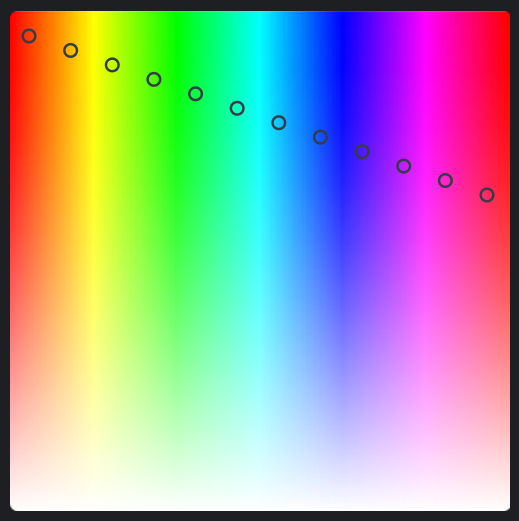
Two color pickers, and the option to spread a color across a selected group of fixtures. Want fader control over the output instead? Use the fixture faders.
Lighting effects
Bring a fixture to life in a few clicks. Every effect can be saved as a palette or onto a scene fader for instant playback.
Pixel strip control
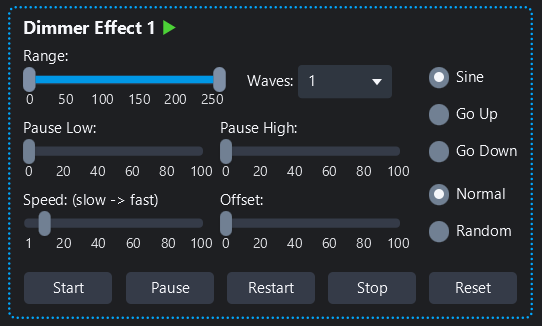
Turn RGB and RGBW strips and LED bars into moving displays. 1D effects run along a strip, 2D effects across a matrix, and per-pixel control is there when you want it.
Fixture faders
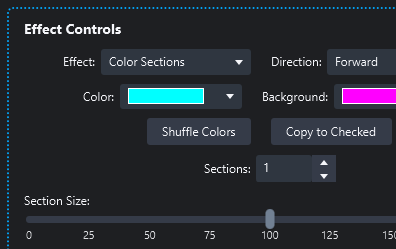
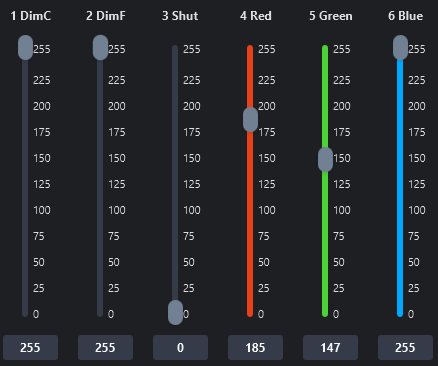
Set the level of every channel by hand. With a fully built GDTF file each fader is labelled with what the channel actually does.
Color palettes
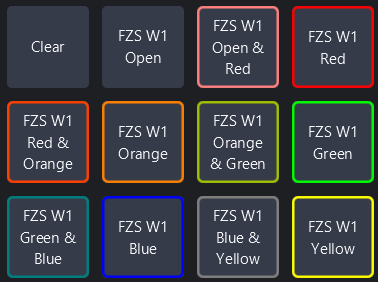
SDC generates palettes straight from the GDTF file, and you add your own on top, sorted into categories. Color palettes show the output color and gobo palettes show the gobo shape, so you pick by eye.
Pan and tilt
Get fixtures moving quickly, then apply offsets or invert pan and tilt for more interesting movement. Faders limit the range; a scroll wheel handles coarse and fine adjustment.

Remote control
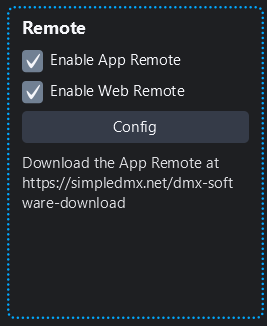
A built-in web remote and a stand-alone app let anyone on the local network drive faders, palettes and scenes from a phone, tablet or laptop.
Saving faders and palettes
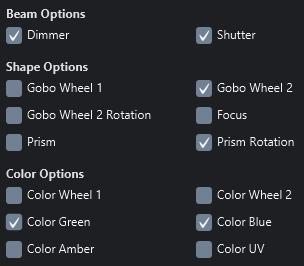
Save options control exactly what each palette or scene fader stores, so you can stack them into bigger looks without them fighting each other. Saved palettes and scene faders are there the next time you open SDC, ready to activate.
Scene faders
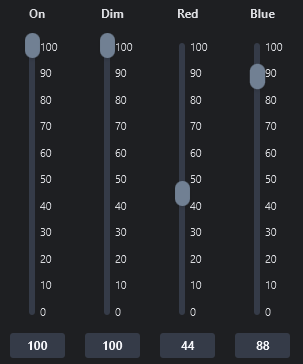
Make as many scene faders as you want, and decide per fader exactly which part of the rig it adjusts.
MIDI control
Hands-on control with the Akai APC Mini MK2. Select a button, hit Assign, press the button on the controller - that is the whole mapping process.
Kick Analyser
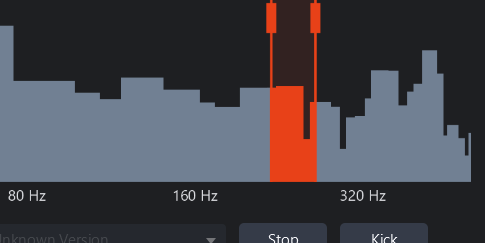
SDC listens to your audio input and finds the kick drum, so any effect set to "Use Kick" fires in time with the music. No tapping tempo all night.
Masters section
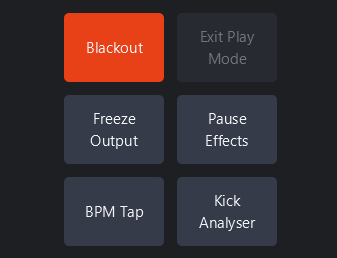
Blackout, Freeze Output, Pause Effects and BPM Tap sit down the right-hand side, on screen on every page, with the grand master dimmer and the movement-speed faders above them. The things you need in a hurry are never more than one click away.
Play Mode
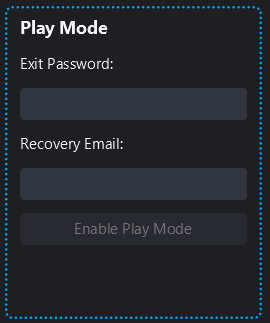
Lock the interface behind a password so the look you programmed stays put. Bar staff can run the faders and palettes they need and nothing else. Forgotten the password? It is mailed to your recovery address.
Overview windows
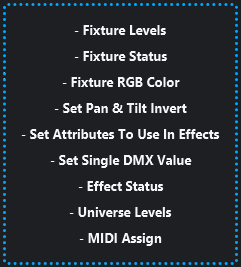
Extra windows for the whole DMX universe, running effects and per-fixture information. Built for two screens: the interface on one, what the rig is doing on the other.
Settings
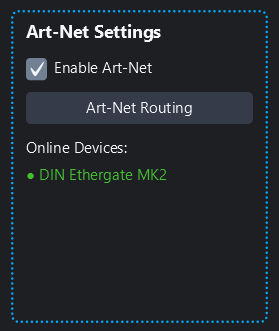
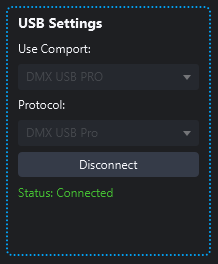
There are not many, on purpose. Pick a USB device from a dropdown or type the IP of an Art-Net node, and you are outputting.
Supported hardware
Not locked to a brand: all Art-Net devices and many popular USB-to-DMX adapters. There is a good chance you already own something that works.